How to Fix YouTube Sign in Failed on TV Quickly
Table of Contents
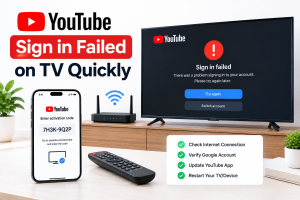
If you can’t sign in to youtube on tv, unplug the TV for 60 seconds, clear the YouTube app cache in Settings, auto-sync tv date and time, or sign in using your phone on the same wi-fi network on youtube.com.
Smart TV’s add much to the entertainment in living rooms, but authentication issues get in the way of movie time quickly. This log in obstacle is applicable to Samsung, LG, Sony, Roku, Apple TV and Android TV setups.
Determining the cause of the drop-out in access to your TV app can help you avoid the same situation again.
Why YouTube Sign In Fails on Smart TVs
Before working through diagnostic steps, identifying what triggers authentication errors saves time. Smart televisions exchange encrypted security tokens with Google servers during login. When these tokens desync, the app rejects your credentials.
- Corrupted Local Data Cache: Stored temporary app data fragments over time and blocks fresh authorization requests.
- Outdated Device Firmware: Running an obsolete TV operating system leads to security protocol mismatches.
- Network Clock Desynchronization: If your smart TV clock drifts from real-time network clocks, secure SSL handshakes fail immediately.
- Google Account Security Changes: Password updates or 2-Factor Authentication shifts instantly invalidate old TV authorization tokens.
- Temporary Server Downtime: Brief regional outages on Google authorization infrastructure cause sudden sign-out errors. If you suspect broader network issues, check current status reports on YouTube TV outages or general service disruptions.
7 Tested Fixes for YouTube Sign In Failed on TV
Follow these step-by-step methods in order to resolve account authorization failures across all major smart television models.
Step 1: Perform a Full Cold Boot Power Reset
Turning off a TV with a remote only places it into standby mode. A cold boot drains residual power and purges temporary memory bugs.
- Turn off your television using your remote control.
- Unplug the main power cord from the wall outlet directly.
- Leave the unit unplugged for at least 60 full seconds.
- Plug the power cable back into the wall outlet.
- Launch the app and attempt to log into your profile again.
Step 2: Clear YouTube App Cache and Data Files
Cached data optimizes load speeds, but corrupted files prevent proper profile synchronization.
- Android TV & Google TV: Navigate to Settings > Apps > See all apps > YouTube. Click Clear Cache, then click Clear Data.
- Samsung Smart TV (Tizen OS): Open Settings > Support > Device Care > Manage Storage. Select YouTube, view details, and click Clear Data.
- LG Smart TV (webOS): Access Settings > Application Manager > YouTube and choose Clear Data.
Step 3: Verify and Sync TV Date and Time Settings
Security certificates check your local clock against server timestamps. An inaccurate TV clock immediately blocks account logins.
- Open your TV Settings menu.
- Navigate to System or General options.
- Select Date & Time.
- Enable Automatic Date & Time or Use Network-Provided Time.
Platform | Navigation Path for Clock Settings | Preferred Setting |
Android TV | Settings > Device Preferences > Date & Time | Automatic |
Samsung TV | Settings > General > System Manager > Time | Auto |
LG webOS | Settings > General > System > Time & Date | Set Automatically |
Roku TV | Settings > System > Time | Auto Sync |
Step 4: Use Mobile Activation Code Authorization
Typing passwords with a TV remote often leads to input errors. Using a secondary browser connection bypasses TV remote keyboard bugs.
- Open YouTube on your TV and select Sign In.
- Pick Sign in with a mobile device or Web Browser.
- Grab your phone or laptop connected to the exact same Wi-Fi network.
- Open your browser and go to the link shown on your screen.
- Open your browser and go to youtvstart.com.
Step 5: Update App and Smart TV Operating System
Outdated applications miss critical security patches needed to interface with current Google account servers.
- Visit your television built-in app store (Google Play Store, LG Content Store, or Samsung App Store).
- Search for YouTube and select Update if a new version is available.
- Go to TV Settings > Support > Software Update to install pending system updates.
Step 6: Reset the YouTube App Settings
Resetting the app restores factory default settings without deleting app files completely.
- Launch YouTube on your television.
- Scroll down the left sidebar menu and click Settings (gear icon).
- Scroll to the bottom of the list and select Reset App.
- Confirm your choice to log out all accounts and clear local state settings.
- Re-open the app and try signing in fresh.
Step 7: Re-link Your Google Account on Mobile
Sometimes your Google profile flags the television as an unrecognized device.
- Open your Google Account settings on your smartphone.
- Go to Security > Your devices.
- Locate your TV from the list and tap Sign Out.
- Re-open the app on your TV and complete the sign-in procedure again to issue a fresh security key.
Simple Preventative Steps for Smooth Streaming
- Enable automatic app and OS updates inside your TV system menu.
- Reboot your home internet router once per month to refresh IP assignments.
- Keep at least 1 GB of internal storage free on your smart TV memory.
- If streaming errors persist across multiple apps, review common troubleshooting guides for YouTube TV problems today to rule out system-wide bugs.
Conclusion
Solving login problems with a smart TV typically involves basic maintenance. Most account errors can be resolved in minutes by power cycling your television, deleting corrupted cache files and verifying that your network clock is synchronized. If local application troubleshooting proves unsuccessful, the phone web activation method is a quick alternative to avoiding problems with the remote control keyboard altogether. You won’t experience the constant sign-in interruptions while streaming that you would otherwise face if you didn’t keep your device’s firmware up to date and leave some free space inside.
Frequently Asked Question
Why does the "Sign in failed on tv" message appear again and again?
It is a condition that reoccurs because of corrupt app cache files or because the app is outdated or when the network time is desynchronized between the TV and the Google authentication servers.
On YouTube in the smart TV app, how do I clear the cache?
Navigate to your TV’s home menu, choose Apps, find YouTube, and tap Clear Cache.
Will clearing app data delete my saved YouTube playlists?
No. Clearing app data only removes temporary files on that specific TV. Your playlists, subscriptions, and history remain safely stored on your Google Account (note that features vary depending on whether you have a standard account or a full YouTube TV membership).
Why does my TV web activation code keep failing?
Activation codes expire quickly. If a code fails, exit to the TV app home screen, generate a fresh code, and verify both your phone and TV use the same Wi-Fi.
Can an incorrect TV clock prevent me from logging in?
Yes. Google servers reject security tokens if your TV clock does not match the exact network time zone.
Why does YouTube log me out every time I turn off my TV?
This occurs when your TV internal storage is completely full or when power-saving modes cut standby memory allocations.
Does a weak Wi-Fi signal cause sign-in errors?
Yes. Unstable connections cause token requests to time out before completing authorization.
What should I do if the TV sign-in screen is completely blank?
Force-stop the app via your TV settings, clear the cache, or unplug your TV from the wall outlet for 60 seconds.
Does resetting the app delete offline downloaded content?
Yes. Performing an app reset wipes local app data, including offline downloads stored on that device.

Peter
Related Post

How to Record a Show on YouTube TV
How to Record a Show on YouTube TV Table of Contents Record a YouTube TV show by searching for a program’s title and selecting +
How to Fix YouTube Sign in Failed on TV Quickly
How to Fix YouTube Sign in Failed on TV Quickly Table of Contents If you can’t sign in to youtube on tv, unplug the TV
How to Add NFL RedZone to YouTube TV: A Step-by-Step Guide
How to Add NFL RedZone to YouTube TV: A Step-by-Step Guide Table of Contents Football enthusiasts know that if they do not get the continuous