How to Stream YouTube TV on Discord Without a Black Screen
Table of Contents
A virtual movie night or live sports watch party with online friends often runs into technical hurdles when live TV feeds turn pitch black during screen sharing. Group watch parties on servers require a smooth setup, but digital rights protection systems in web browsers frequently block live broadcast video streams.
This complete guide explains how to stream YouTube TV on Discord cleanly, configure browser settings properly, adjust Discord audio controls, and troubleshoot common playback issues on desktop setups.
Why Discord Shows a Black Screen During YouTube TV Screen Share
Understanding the root cause of streaming failures makes setting up a live session much easier. Video feeds turn completely black while the audio continues playing due to a conflict between web browser rendering features and digital media rights.
Digital Rights Management (DRM) Restrictions
Streaming platforms use high-bandwidth digital content protection to prevent unauthorized recording and broadcasting of live cable channels. When troubleshooting persistent playback errors across browser windows, checking guides on YouTube TV problems today helps identify whether the issue stems from platform DRM updates or local browser conflicts.
GPU Hardware Acceleration Conflicts
Modern web browsers route video processing directly through the graphics processing unit (GPU) to lighten the load on system processors. This hardware acceleration feature prevents screen-capturing software from reading the visual display layer of the browser tab. Turning off this feature forces the browser to render video using software processing, allowing screen share tools to capture the stream smoothly without encountering a YouTube TV black screen glitch.
Step-by-Step Guide: How to Stream YouTube TV on Discord
Setting up a live broadcast watch party requires configuring both the web browser and the desktop messaging application before going live in a server voice channel.
Step 1: Turn Off Hardware Acceleration in the Web Browser
Launch the updated web browser and visit the main streaming portal at YouTube TV. Sign in to the active account, select the live television channel or recorded program intended for the watch party, and press play. Leave the browser tab open and active.
- Google Chrome: Click the three vertical dots in the upper-right corner, select Settings, navigate to System, and turn off Use graphics acceleration when available. Relaunch the browser.
- Mozilla Firefox: Click the menu button, select Settings, scroll down to Performance, and uncheck Use recommended performance settings, and turn off Use hardware acceleration when available.
- Microsoft Edge: Open Settings, select System and Performance, and toggle off Use graphics acceleration when available.
Step 2: Open YouTube TV in the Prepared Browser
Launch the updated web browser and visit the official TV streaming portal. Sign in to the active subscription account, select the live television channel or recorded program intended for the watch party, and press play. Leave the browser tab open and active.
Step 3: Configure Discord Application Settings
Open the desktop version of the messaging app for optimal performance.
- Click the gear icon near the bottom left to open User Settings.
- Scroll to Voice & Video under the app settings section.
- Scroll down to the Screen Share options and disable Use our latest technology to capture your screen if video flickering occurs.
- Move to the Advanced tab on the left sidebar and toggle off Hardware Acceleration inside the application as well.
Step 4: Add the Browser as a Registered Game
Adding the browser directly as an active application guarantees that audio and video synchronize without system lag.
- In User Settings, select Registered Games from the left menu.
- Click the Add it! The link is highlighted in blue text.
- Select your web browser from the drop-down list and click Add Game.
- Close the settings window to return to your main channel overview.
Step 5: Join a Voice Channel and Start the Stream
Navigate to the designated community server and enter a preferred voice channel.
- Click the Share Your Screen monitor icon located right above your profile card or near the registered application overlay bar.
- Select the specific application window corresponding to the web browser rather than sharing the entire desktop screen.
- Choose a stream resolution (720p or 1080p) and frame rate (30fps or 60fps) based on internet bandwidth capacity.
- Ensure the sound toggle is turned on so participants can hear live show commentary.
- Click Go Live to start broadcasting.
Troubleshooting Audio, Video, and Performance Issues
Even after proper setup, secondary system settings can occasionally interfere with stream quality.
Resolving Missing Stream Audio
When viewers can see live television broadcasts but cannot hear any background audio, check these common fixes:
- Share Application Windows: Capturing a full desktop screen often silences internal application audio. Always capture the specific browser window under application sharing.
- Reset Voice Settings: Navigate to User Settings > Voice & Video, scroll to the bottom, and click Reset Voice Settings.
- Run App as Administrator: Close the program, right-click the desktop shortcut icon, and select Run as Administrator to grant full audio routing permissions.
Fixing Video Lag and Frame Drops
Smooth live stream playback relies heavily on system resource allocation and connection health.
- Reduce Broadcast Output: Lower the stream frame rate to 30 fps or lower output resolution from 1080p to 720p inside the screen share control panel.
- Close Unused Applications: Open system task managers to close high-memory background tabs, download managers, or extra desktop applications.
- Clear App Cache: Press the Windows Key + R, type %appdata%/discord, click OK, and clear stored temporary cache folders before restarting. If server-side buffering issues persist across multiple devices, verifying YouTube TV outage status reports ensures your local setup isn’t taking the blame for broader server drops.
Streaming Best Practices for Group Watch Parties
Running a successful online watch party involves maintaining crisp video clarity, keeping audio balanced, and respecting channel boundaries.
Operational Focus | Recommended Setup Action |
Network Connection | Use a wired Ethernet connection to prevent wireless packet loss during high-definition streaming. |
Audio Isolation | Use head-tracking headphones instead of open speakers to prevent microphone echo loops during streams. |
Browser Choice | Run watch parties inside standalone Chrome or Firefox windows dedicated entirely to video playback. |
Server Permissions | Verify that server roles permit screen sharing, video streaming, and voice channel activity. |
Conclusion
Learning how to stream YouTube TV on Discord opens up an easy way to enjoy live sports, breaking news, and popular television releases alongside friends online. Turning off hardware acceleration inside your primary web browser removes the frustrating black screen obstacle caused by media protection protocols. Adding your web browser as a registered game application further stabilizes system audio and delivers crisp video directly to your server voice channels. If you ever decide to try a different service down the road, knowing how to cancel YouTube TV free trial ensures you can test out alternative setups without unexpected billing changes. With settings tuned properly, hosting interactive virtual watch parties becomes effortless.
Frequently Asked Question
Why does a black screen appear when sharing live TV channels?
A black screen appears because web browser hardware acceleration interferes with screen capture tools while digital media protection protocols lock the video player output.
Can watch party streams run using the mobile app?
Mobile application versions do not support window-specific application screen sharing with audio pass-through for streaming media sites. A desktop computer gives the best results.
Does hardware acceleration need to stay off permanently?
Turning off hardware acceleration is only required during active stream sessions. It can be turned back on anytime to boost regular web browsing performance.
How do hosts share browser audio without microphone feedback?
Select the browser window directly under application screen sharing instead of choosing the entire desktop display option.
What network speed works best for live group streams?
An upload speed of at least 10 Mbps guarantees continuous high-definition video streaming without sudden drops in broadcast quality.
Does Discord Nitro improve stream quality for watch parties?
Basic membership supports standard output resolutions, while Nitro subscriptions unlock higher frame rates like 60fps and 1080p or 4K source resolution.
Which web browser works most reliably for live watch parties?
Google Chrome and Mozilla Firefox offer the most reliable performance once hardware acceleration features are switched off in settings.
Why does stream video stutter while audio plays fine?
Video stuttering usually happens when system processors max out. Lowering the stream output frame rate or resolution restores smooth playback.
Can friends control the video playback remotely?
Viewers can only watch the incoming video feed; only the host controlling the primary browser window can pause, rewind, or select live channels.
Is it necessary to run the app as an administrator?
Launching the app with administrative privileges fixes hidden permission conflicts and prevents unexpected audio drops during screen share sessions.

Peter
Related Post

Is MeTV on YouTube TV? How to Watch Classic Shows in 2026
Is MeTV on YouTube TV? How to Watch Classic Shows in 2026 Table of Contents Many cord-cutters find that their favourite classic TV series is
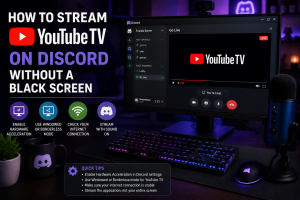
How to Stream YouTube TV on Discord Without a Black Screen
How to Stream YouTube TV on Discord Without a Black Screen Table of Contents A virtual movie night or live sports watch party with online

YouTube TV Class Action Lawsuit: Claim Payouts and Eligibility Guide
YouTube TV Class Action Lawsuit: Claim Payouts and Eligibility Guide Table of Contents Anyone who paid for YouTube TV between April 1, 2019, and March