Complete Guide to YouTube TV Account Management: Settings, Plans, and Devices
Table of Contents
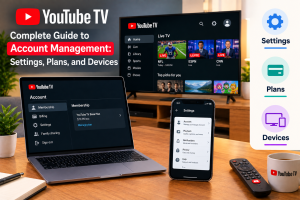
Looking for an easy way to handle YouTube TV account management? To manage a YouTube TV membership, open a web browser, go to tv.youtube.com, sign in with the Google Account, click the profile avatar in the upper-right corner, and select Settings. From this dashboard, subscribers can instantly update payment options, manage add-on channel networks, adjust household family sharing, or modify home location permissions. Taking control of live TV streaming takes only a few simple clicks.
Managing live streaming television accounts should feel simple and straightforward. Subscription platforms offer flexibility, but navigating settings menus, payment schedules, and channel options sometimes creates unnecessary confusion. Whether setting up profiles for family members, updating billing methods, or pausing a monthly package during vacation, having clear step-by-step guidance saves both time and money. This guide breaks down every step of the process into clear, easy-to-follow instructions.
What Is YouTube TV Account Management?
Primary account management involves controlling all active subscription details, connected profiles, and digital security settings through a central dashboard. Accessing these options allows subscribers to customize viewing experiences for the whole household. Understanding overall YouTube TV cost breakdown helps users choose the best settings and options for their budget.
Essential Navigation Methods
Accessing settings takes less than a minute across different everyday devices:
- Web Browsers: Visit tv.youtube.com on a computer, sign in, and tap the top-right profile image.
- Mobile Devices: Open the YouTube TV app, tap the user avatar at the top right, and pick Settings.
- Smart TVs: Open the app side panel, scroll down to the bottom gear icon, and select account preferences.
Managing Base Plans and Add-On Channels
Subscribers hold complete authority over monthly live channel packages and premium network add-ons. Modifications update automatically, giving viewers instant access to newly chosen networks. Viewers wanting expanded channel options can check out specialized YouTube TV add-ons to enhance their viewing line-up.
Base Subscription ──> Add Sports/Movie Packages ──> Custom Monthly Plan
Steps to Add or Remove Premium Networks
- Log in to the main subscription portal.
- Click the profile picture and select Settings.
- Select Membership from the side panel menu.
- Check the box next to any desired premium network (such as Max, Sports Plus, or 4K Plus) or uncheck unwanted channels.
- Review the new monthly total and click Confirm.
For instance, sports enthusiasts can add specialized sports networks right before football season begins and simply uncheck those same add-ons once the regular season ends.
How to Update Payment and Billing Information
Keeping billing details up to date prevents sudden service disruptions during live events. Adding secondary payment cards offers a extra layer of reliability.
Payment Method Type | How It Works | Primary Benefit |
Primary Credit/Debit Card | Default source charged on the monthly billing date. | Smooth auto-renewals. |
Backup Payment Method | Secondary card charged if primary card fails. | Prevents sudden service loss. |
PayPal Account | Linked digital wallet payment processing. | Flexible online tracking. |
Carrier Billing | Payments bundled with mobile or internet bills. | Single combined invoice. |
Guide to Updating Payment Details
- Navigate to tv.youtube.com on a phone or desktop.
- Click on the profile photo and select Settings.
- Click Billing from the left navigation column.
- Click Update next to the current payment method.
- Enter the new credit card information or connect a preferred PayPal account.
Pausing vs. Canceling YouTube TV Subscriptions
Subscribers taking an extended trip or cutting back on monthly expenses can choose between pausing or canceling their service altogether.
Current Membership ──> Pause (Up to 8 Months / Retains DVR)
└──> Cancel (Immediate Stop / Clears DVR after cycle)
Comparing Pause and Cancel Options
- Pausing Service: Allows subscribers to halt billing for anywhere between 4 weeks and 8 months. Saved cloud DVR recordings remain securely stored and become accessible again as soon as the pause period ends.
- Canceling Service: Ends recurring payments immediately. Streaming remains active until the end of the current paid billing cycle, after which saved library recordings get erased permanently.
Setting Up Household Family Groups and Profiles
Subscribers taking an extended trip or cutting back on monthly expenses can choose between pausing or canceling their service altogether. If tested out via a trial run, knowing how to cancel YouTube TV free trial prevents unexpected charges.
Key Rules for Household Family Sharing
- Age Requirements: The family account manager must be at least 18 years old, while invited family group members must be at least 13 years old.
- Individual Libraries: Every profile gets private cloud DVR storage, personal watch histories, and unique recommendations.
- Stream Limits: Up to three separate streams can play concurrently across all member devices.
Step-by-Step Family Group Creation
- Sign in and select Settings.
- Click Family Sharing from the menu options.
- Click Set Up or Manage.
- Enter the Google email addresses of up to five household members and click Send.
Managing Location Settings and Home Areas
Local networks and regional broadcast sports depend on physical geographic location. Maintaining proper location permissions ensures local news and local channel broadcasts remain available.
[Device Connection] ──> [Location Settings] ──> [Home Area Identification]
Rules for Home Locations
- Home Location: The home network location dictates local network channel line-ups.
- Travel Check-Ins: Family group members must log in and stream from the home area network at least once every 90 days to maintain ongoing access.
- Updating Area Details: To update a home location after moving houses, open the app on a device connected to the new home internet, go to Settings, select Location, and tap Home Area Update.
Account Security and Privacy Preferences
Sharing live television access with household family members requires zero extra fees. Proper YouTube TV account management lets a family manager invite up to five additional people to share a single account. Managing an active YouTube TV membership makes controlling family privileges simple.
[Profile Settings] ──> [Privacy & Security] ──> [Enable 4-Digit Passcode]
Smart Steps for Account Protection
- Set Up TV Lock Codes: Create a 4-digit PIN code on shared TV apps to prevent kids or guests from switching into administrative profiles.
- Manage Watch History: Pause or clear viewing history inside privacy settings to keep recommendations accurate.
- Remote Device Logouts: Review active signed-in devices using Google Account security controls to log out untrusted screens remotely.
Conclusion
Mastering Youtube TV Account managment gives subscribers full control over home entertainment setups, spending, and profile privacy. Whether modifying monthly add-on packages, updating payment options, pausing service for travel, or organizing family sharing groups, taking advantage of these built-in control features ensures a clean, custom viewing experience for everyone in the home. For more device setup tips and activation guides, visit YouTV Start. Adjust settings today to build the ideal live TV streaming plan.
Frequently Asked Question
How does YouTube TV account management work for multiple users?
A main account manager creates a household group and invites up to five family members. Each member logs in with their own Google Account, granting them a completely private DVR library, custom recommendations, and personal watch histories.
Can a subscription be paused without losing recorded DVR shows?
Yes, pausing a subscription keeps saved cloud DVR recordings safe for up to eight months. Once the subscription resumes, all previously saved recordings become available again.
How many devices can stream simultaneously on one account?
Standard memberships allow three simultaneous streams at the same time across all connected home devices. Purchasing the 4K Plus add-on removes this limit for streams connected to the home network.
What happens if a family group member lives in a different city?
Family group sharing requires all members to live in the primary manager’s household. Members must connect to the home network location at least once every 90 days, or their access becomes temporarily restricted.
How are add-on channels canceled without closing the whole account?
Sign in, open Settings, select Membership, and uncheck the specific add-on network. Confirm the change to drop that add-on fee while keeping the main base channel plan active.
Where is the option to update primary payment cards located?
Open settings from the top-right profile picture, click Billing, click Update next to the primary payment method, and input the new card details.
Why do local channels change while traveling?
YouTube TV uses real-time device location permissions to show local news and sports networks matching the physical region currently being visited.
Can family group invitations be sent to non-Google email addresses?
No, every individual invited to a family group must possess an active Google Account to accept the invitation and sign in.
How do PIN passcodes protect profiles on shared TV apps?
Enabling a 4-digit device PIN inside TV settings requires users to enter a code before switching profiles, keeping primary settings safe from unauthorized changes.
How can subscriptions billed through third parties be changed?
Subscriptions billed through mobile carriers or internet providers must be modified directly through that provider’s custom customer billing portal rather than YouTube TV settings.

Peter
Related Post


Complete Guide to RedZone YouTube TV: Features, Cost, and Setup
Complete Guide to RedZone YouTube TV: Features, Cost, and Setup Table of Contents Want to catch every single touchdown without sitting through commercial breaks? Football
Complete Guide to YouTube TV Account Management: Settings, Plans, and Devices
Complete Guide to YouTube TV Account Management: Settings, Plans, and Devices Table of Contents Looking for an easy way to handle YouTube TV account management?
How to Fix the YouTube TV App Not Working Issue on Any Device
How to Fix the YouTube TV App Not Working Issue on Any Device Table of Contents When facing the YouTube TV App not working error,