News

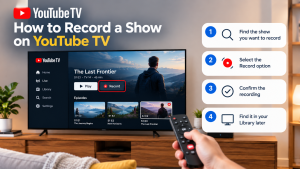
How to Record a Show on YouTube TV
How to Record a Show on YouTube TV Table of Contents Record a YouTube TV show by searching for a program’s title and selecting +
Struggling to delete recorded shows on YouTube TV? It starts with a stable internet connection—aim for 5 Mbps or better to ensure the app loads your library smoothly without glitches during management. Users often hit snags when Wi-Fi drops or the app lags, but clearing cache and restarting the device fixes most access issues fast. Once connected, head to the Library tab where recordings live.
Toggle the checkmark next to a show to remove it entirely, stopping future episodes too. No complicated menus or hidden fees involved; everything stays in your unlimited DVR until you take control. This simple process frees up mental space from cluttered lists, letting viewers focus on fresh content instead of old episodes piling up. For cord-cutters tired of bloated libraries, mastering this keeps YouTube TV feeling organized and tailored just right.
YouTube TV’s unlimited DVR sets it apart from traditional cable, storing recordings in the cloud for up to nine months without extra hardware. Viewers add shows to their library for automatic capture, but managing space means knowing how to delete recorded shows on YouTube TV effectively to avoid overwhelming lists.
When someone picks “Add to Library” on a show, every new episode lands there automatically—news broadcasts, sports highlights, dramas, all saved indefinitely until expiration or manual removal. The system tracks watched status but doesn’t auto-delete viewed content, leaving cleanup in users’ hands. Libraries sort into sections like DVR, Purchases, and Scheduled, making navigation straightforward on phones, TVs, or browsers. Sports events record based on team follows, filling space with recaps and playoffs.
No storage caps exist, but the oldest files vanish after nine months to keep things fresh. Marking episodes as watched hides them from main views without deleting, a handy trick for decluttering. Scheduled recordings cancel when removing a series, though past episodes linger until their clock runs out. This balance suits binge-watchers who hate losing favorites mid-season.
Deleting recordings on YouTube TV is a universal process, but the interface varies slightly depending on whether you’re on a computer, a phone, or a TV.
If you find your youtube tv not working correctly or the library feels laggy, it might be time for a digital cleanup.
Instead of deleting after the fact, stop the clutter before it starts.
You don’t have to delete everything. YouTube TV automatically purges recordings after 9 months. This is a built-in “auto-expiration hack” that ensures your library doesn’t become a permanent graveyard of content from years ago.
If you’ve unchecked a show but it keeps coming back, or you’re seeing youtube tv problems today with your library sync, try these steps:
Keeping a lean library makes your youtube tv membership feel more personalized. A clean DVR helps the algorithm recommend shows you actually like rather than things you recorded once by accident.
If you are just starting out and comparing the youtube tv cost to other services, remember that this unlimited DVR—even with the 9-month expiration—is one of the most powerful tools in the streaming world.
Mastering how to delete recorded shows on YouTube TV transforms cluttered DVRs into personalized hubs. Simple checkmark toggles, proactive scheduling cancels, and routine cleanups keep everything fresh amid unlimited storage. Families gain smoother sharing, sports fans tighter rosters, and everyone enjoys faster navigation without cable headaches. Whether via app, browser, or TV, these steps empower control over every step. Start with Library today—watch recommendations sharpen and viewing joy soar.
Head to the Library tab, pick the show, tap its details page and toggle off the green checkmark—stops future recordings too and clears it right away.
Nope, the system works by whole series or events—checkmarks remove entire libraries for that show. Old episodes auto-drop after nine months anyway.
It vanishes from Library instantly across devices, and future episodes skip recording. Existing ones stay if not fully removed until expiration hits.
No native feature yet, but sort by date and tackle one by one fast. Mark as watched hides without deleting for quick declutter.
Yep, changes push out in seconds to minutes—restart apps if lagging. Primary account edits affect everyone sharing the subscription.
Same as deleting: Library > show details > uncheck “Added to Library.” Scheduled tab confirms it’s gone from upcoming.
Not really—DVR unlimited, deletes just organize. Nine-month auto-purge handles overflow naturally without user effort.
Sync glitches or reschedules from outages—refresh Library, check Scheduled, restart app. Happens rarely with a stable internet.
Profiles separate but primary controls globals. Set PINs to block or manage from main account during cleanups.
No, just hides from main views—full delete needs checkmark toggle. Great for quick cleanup without permanent loss.

How to Record a Show on YouTube TV Table of Contents Record a YouTube TV show by searching for a program’s title and selecting +
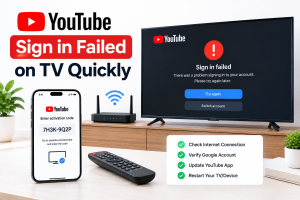
How to Fix YouTube Sign in Failed on TV Quickly Table of Contents If you can’t sign in to youtube on tv, unplug the TV

How to Add NFL RedZone to YouTube TV: A Step-by-Step Guide Table of Contents Football enthusiasts know that if they do not get the continuous