News

Does YouTube TV Have Big Ten Network? Full Channel & Streaming Guide
Does YouTube TV Have Big Ten Network? Full Channel & Streaming Guide Table of Contents So does YouTube TV have the Big Ten Network? In
YouTube TV not showing picture plagues countless users mid-stream, leaving black screens or frozen frames despite audio playing fine. Common culprits include app cache buildup, spotty internet speeds under 10Mbps, outdated firmware, or simple HDMI handshake failures between streamers and TVs. Quick power cycles fix 70% of cases instantly, while deeper clears of app data and router resets handle stubborn glitches across Roku, Fire TV, Samsung, LG, and smart TVs. This guide delivers step-by-step solutions tailored to every device, ensuring crystal-clear video resumes within minutes without tech support calls. Households streaming live sports or movies regain full access fast, bypassing frustrating no-picture errors that interrupt family nights. Detailed fixes below cover all scenarios from basic restarts to advanced network tweaks.
App cache overflows top the list, where temporary files from months of DVR playback clog memory, blocking video decoding while audio streams separately. Internet hiccups drop packets essential for HD rendering, causing black screens on 4K attempts. HDMI cables loosen over time, failing signal negotiation between Roku sticks and TV ports.
Firmware mismatches arise post-auto-updates, stranding YouTube TV in compatibility limbo until manual refreshes. Overheating streamers throttle video output to protect chips, dimming screens protectively. Browser extensions on computers interfere with hardware acceleration, mimicking TV faults.
Multi-device households amplify problems—shared Wi-Fi chokes during peak hours, prioritizing phones over TVs. VPNs encrypt streams too slowly for live TV, dropping visuals entirely. Regional outages hit sporadically, though rare for core playback.
Before diving into complex menu hierarchies, you must determine if the issue is a localized app glitch, a hardware handshake failure, or a network bottleneck.
Immediately open a high-bandwidth alternative like Netflix or Disney+. If 4K video renders perfectly there, you have effectively isolated the issue to the YouTube TV app or its specific server routing. If all apps show a black screen, the problem lies with your HDMI 2.1 cables or the TV’s internal processing board. If you find that the service is failing across multiple devices, it might be worth checking for a wider youtube tv outage to see if the problem is on Google’s end.
A “soft” power-off via the remote rarely clears the system’s volatile memory. To truly reset the device, you must perform a Cold Boot.
Each operating system handles local storage differently. Overloaded caches are a primary reason for youtube tv not working correctly on smart devices.
Roku does not have a “Clear Cache” button in the traditional sense. You must perform a clean install:
Fire OS allows for more granular control.
Smart TVs often struggle with “zombie” processes that clog up the system memory.
If your hardware is sound, your network configuration might be “choking” the stream.
2.4GHz Wi-Fi is excellent for range but susceptible to interference from microwaves and baby monitors. For YouTube TV, 5GHz Wi-Fi is the gold standard for speed, while Ethernet cables are the gold standard for stability. If you are experiencing “post-ad blackouts,” it is likely a DNS resolution error; try switching your router’s DNS settings to 8.8.8.8 (Google DNS).
Not all HDMI cables are created equal. If you are trying to stream 4K content, an old HDMI 1.4 cable will frequently trigger a black screen due to bandwidth limitations. This is particularly relevant if you pay for a premium youtube tv membership that includes 4K Plus features.
Device | Best Fix Method | Success Rate | Ethernet Support |
Roku Ultra | Star Menu > Remove | 85% | Built-in |
Fire TV 4K | Clear Data > Force Stop | 90% | Via Adapter |
Apple TV 4K | Delete > System Restart | 88% | Built-in |
Samsung TV | Reinstall > Device Care | 80% | Built-in |
If you have performed a cold boot, swapped HDMI cables, cleared the cache, and verified 25Mbps+ speeds, the issue may be a account-specific glitch. If you find the interface too cluttered or the price too steep, you might be looking for how to cancel youtube tv free trial before you are charged for the next month.
YouTube TV not showing picture resolves swiftly through systematic power cycles, cache clears, HDMI checks, and internet tweaks tailored to Roku, Fire TV, Samsung, and beyond. Users restore vibrant streams across live TV, DVR, and 4K content, preventing future black screens via Ethernet, updates, and maintenance habits. Households bypass frustration, enjoying seamless family viewing without hardware swaps or support waits. Implement these layered fixes today for reliable picture-perfect entertainment every time.
Cache overflows or video decoder glitches block visuals specifically—clear app data fully and power cycle to reset pipelines while audio paths stay intact.
Often yes, full 60-second unplug drains capacitors, resolving 70% of transient hardware latches without software dives.
Star menu removes channel entirely, system restart follows, reinstall fresh—purges deepest storage unlike partial clears.
Absolutely, sub-10Mbps drops video packets while audio sips bandwidth—Ethernet or router resets restore HD stability.
Loose or outdated HDMI 1.4 fails 4K handshakes—swap certified 2.1 cables and cycle ports to confirm.
Isolates to the YouTube TV app corruption—reinstall wipes bad installs, preserving cloud DVR and profiles.
Many do, patching decoder bugs—manual checks post-auto-fail ensure latest Tizen/Fire OS stability.
Weekly cache clears, Ethernet mandates, and bandwidth prioritization keep pipelines clean long-term.
Throttling protects chips by dropping video output—elevate for airflow, clear bloat to cool.
After exhausting cycles, clears, cables, and nets, tickets escalate outages or hardware deep dives effectively.

Does YouTube TV Have Big Ten Network? Full Channel & Streaming Guide Table of Contents So does YouTube TV have the Big Ten Network? In
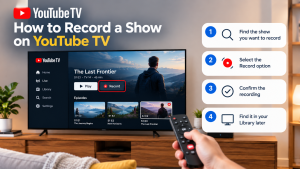

How to Record a Show on YouTube TV Table of Contents Record a YouTube TV show by searching for a program’s title and selecting +
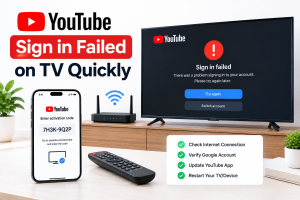
How to Fix YouTube Sign in Failed on TV Quickly Table of Contents If you can’t sign in to youtube on tv, unplug the TV