News

Does YouTube TV Have Big Ten Network? Full Channel & Streaming Guide
Does YouTube TV Have Big Ten Network? Full Channel & Streaming Guide Table of Contents So does YouTube TV have the Big Ten Network? In
To establish the YouTube TV, it is necessary to create an account on a webpage or Android application, during which a user registers for a free trial on the site with his/her Google account and provides payment information safely. Households can easily connect to smart TVs or streaming devices, such as Roku and Fire TV, by downloading the app from the store and logging in using the same account, which will provide instant access to live channels and DVR services. This guide overcomes obstacles in the setups immediately- ensure that the devices are compatible, the Wi-Fi is stable and has a speed of more than 25 Mbps, and the devices have updated firmware to ensure smooth launches with Samsung, LG, and Chromecast.
Family plans accommodate up to six profiles, customizing guides and recordings per user without overlaps. From initial subscription to profile tweaks and remote casting, these steps take under fifteen minutes total. Beyond basics, optimizations like 4K settings and add-ons ensure personalized streaming on every screen, making cord-cutting simple for beginners and pros alike.
Users choose YouTube TV for its unlimited DVR storage that saves shows indefinitely without deletions, unlike traditional cable boxes filling up monthly. Live channels span eighty-plus networks including locals, sports like ESPN, and news outlets, delivering broadcast quality over the internet without antennas.
Family Sharing extend your YouTube TV membership to five additional members, each with private libraries and recommendations. No extra hardware beyond existing smart TVs or fifty-dollar sticks makes entry barriers low for apartments or dorms.
Before you dive into account creation, a quick inventory of your hardware ensures a smooth launch. YouTube TV is compatible with most modern tech, including Samsung QLEDs (2018+), LG OLEDs (WebOS 4.0+), Roku, Fire TV Sticks (3rd-gen+), Apple TV 4K, and Chromecast.
The simplest method of registering is via a computer/smartphone web browser.
Once your account is live, it’s time to move to the big screen.
The real magic happens once you’ve logged in for the first time.
You can share your membership with up to five additional family members at no extra cost.
Don’t settle for the default alphabetical list. You can reorder your “Live Guide” to put your most-watched channels at the top.
One of YouTube TV’s best features is its unlimited cloud DVR.
TIP: To fix about 90 percent of the most frequent setup hiccups, a quick power cycle (unplug the TV, then wait 60 seconds) will fix it.
Installing YouTube TV provides real-time access to local live channels, unlimited DVR, and family profiles on compatible television sets and sticks with minimal hassles. Web trials drive installs and customizations of apps, which customize guides, multiviews, and recordings in line with household requirements. Small device modifications, such as Ethernet and firmware modifications, eliminate glitches, and casting bridges old screens without glitches. Child protection, voice-activated directions, and extensions enhance the options at reasonable prices. These steps and optimizations are the key to cordless entertainment running smoothly, following the sports seasons, family marathons, and daily news without any hassle in the coming years.
Visit the YouTube TV homepage, click Try It Free, sign in with a Google account, enter your zip code for locals, select the base plan, add optional premiums, input payment details, and confirm trial start.
Yes, go to the Roku Channel Store from home, search for YouTube TV, install the app, launch, sign in with your account credentials, select your profile, and customize Live Guide immediately.
Samsung TVs 2018+, LG WebOS 4.0+, Roku all models, Fire TV Stick 3rd-gen+, Apple TV 4K, Chromecast with Google TV, and Android TV boxes like NVIDIA Shield.
Primary users invite five others via email from profile settings post-sign-up; each gets a separate DVR and guides without interfering with main account flows.
Incorrect zip code or VPN active—re-enter location accurately in account settings, disable proxies, wait 24 hours for guide refresh across devices.
Navigate Settings > Membership > Add-ons, browse packs like HBO Max bundle, select desired ones, and confirm monthly charges prorated from the current billing date.
Chromecast plugs into an HDMI port to convert legacy TVs; select the Cast icon from the phone app after Wi-Fi pairing, mirroring the full interface, including DVR libraries.
Minimum 25 Mbps for HD, 50+ Mbps recommended for 4K households; test via speedtest.net, upgrade routers if below thresholds consistently.
From the library home, select Create Profile > Kid, enter name, assign PIN, restrict maturity automatically, curate approved shows list for safe viewing.
Apple TV 4K auto-detects capabilities post-sign-in; enable Match Dynamic Range in video settings, ensure 60 Mbps Wi-Fi 6 for HDR streams without buffering.

Does YouTube TV Have Big Ten Network? Full Channel & Streaming Guide Table of Contents So does YouTube TV have the Big Ten Network? In
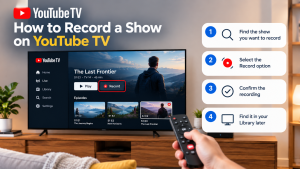

How to Record a Show on YouTube TV Table of Contents Record a YouTube TV show by searching for a program’s title and selecting +
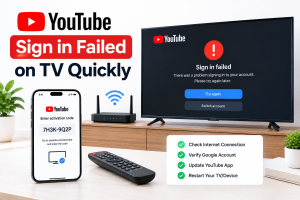
How to Fix YouTube Sign in Failed on TV Quickly Table of Contents If you can’t sign in to youtube on tv, unplug the TV