News

Does YouTube TV Have Big Ten Network? Full Channel & Streaming Guide
Does YouTube TV Have Big Ten Network? Full Channel & Streaming Guide Table of Contents So does YouTube TV have the Big Ten Network? In
Claiming YouTube TV credit starts with logging into the web version of the account, where users find promotional offers or outage compensations waiting in settings menus. Households hit by channel blackouts or trial extensions can access these refunds quickly through profile updates, resolving billing frustrations without support calls. This guide breaks down the process immediately—navigate to profile picture, select Settings, then Updates tab to spot and claim credits like the common $20 Disney outage vouchers.
Family plans distribute benefits evenly, while promo codes apply via billing sections effortlessly. Whether recovering from service disruptions or activating partner deals, these steps take under two minutes across browsers and apps. Detailed paths for computers, phones, and account types ensure everyone secures rightful refunds smoothly. Troubleshooting covers hidden credits and expiration traps, keeping subscriptions cost-effective long-term.
YouTube TV credits are essentially a digital currency used to compensate or incentivize subscribers. They usually fall into one of three categories:
While many outage-related credits are applied automatically, promotional or partner credits often require a manual claim.
Using a computer is the most reliable way to manage your billing.
Note that the native YouTube TV app often lacks a direct “Claim” button for security reasons. It will likely redirect you to your mobile browser to complete the process. To ensure the link works, keep your browser updated and disable any active VPNs that might flag your account for “regional restrictions.”
Sometimes, the credit you were promised doesn’t show up. If YouTube TV is not working correctly or the “Claim” button is grayed out, try these steps:
Eligibility lists often lag behind the initial outage announcement. Systems need time to verify which accounts were active during the disruption before the credit appears in your dashboard.
If you are part of a Family Group, only the Family Manager can typically claim and view billing credits. Sub-accounts can see the channel lineup, but they cannot access the financial or “Updates” tab where credits are housed.
Sometimes browser cookies cause a “login loop” or prevent the “Claim” button from being clickable. Opening an incognito window can bypass these glitches and provide a clean interface for claiming your reward.
Ensure you aren’t running an old version of the software. Outdated builds often hide new billing features or fail to communicate with the latest server-side updates.
Certain outage credits are tied to specific local network blackouts. If your billing zip code doesn’t match the area affected by the blackout, the credit will not be triggered for your account.
Highly restrictive browser extensions can accidentally block the pop-up windows or scripts required to verify a claim. Turn these off temporarily to ensure the “Claim” button functions properly.
Ensure you are logged into the exact Google account used for the subscription. Even a slight variation (like a different Gmail alias) can prevent the system from recognizing your eligibility.
On smart TVs and mobile devices, a bloated cache can prevent the “Updates” tab from refreshing. Clearing the cache forces the app to pull the most recent data from the servers.
Eligibility notifications often contain a direct link to claim your credit. If the button is missing in the app, the link in your official confirmation email may act as a manual override.
Claiming YouTube TV credits transforms disruptions into tangible savings, empowering users through straightforward web paths and proactive monitoring. Profile settings unlock outage compensations, promotional vouchers, and partner deals effortlessly, stacking benefits across family plans seamlessly. Troubleshooting equips handling of hidden buttons or delays, while tracking habits maximize long-term value.
Households secure refunds for blackouts, trials, and bundles without hassle, blending with pauses for ultimate flexibility. Embracing these routines alongside security measures ensures every eligible dollar returns promptly, keeping live streaming affordable and reliable through every negotiation or promotion cycle ahead.
Log into web browser account, click your profile picture, select Settings, navigate to the Updates tab on the left, find the outage notice, and click Claim Credit for instant confirmation.
Billing history shows as line item reductions on the next statement; check profile Settings > Billing for pending previews before the cycle ends.
Primary account holders claim centrally for all profiles; sub-users view balances but execute through the main login only.
Unclaimed credits expire after thirty days typically; contact support with account details for possible extensions during active disputes.
Sequential application allows stacking chronologically; the highest values are processed first, with terms displayed pre-confirmation.
Browser cache or ad-blockers hide elements—clear cookies, disable extensions, update software, or try incognito mode for visibility.
Processing completes next billing cycle; pending status shows immediately in history, with email receipts confirming within hours.
Standard credits offset base membership only; promo terms specify applicability—check details during claim summary screens.
Email notifications and billing timestamps suffice; support verifies outage exposure via logs without additional documentation.
Outage credits issue per incident only; promotional ones tie to campaigns—monitor emails and Updates for recurring eligibilities.

Does YouTube TV Have Big Ten Network? Full Channel & Streaming Guide Table of Contents So does YouTube TV have the Big Ten Network? In
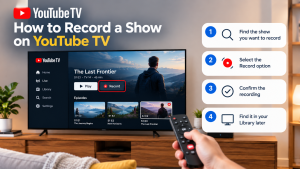

How to Record a Show on YouTube TV Table of Contents Record a YouTube TV show by searching for a program’s title and selecting +
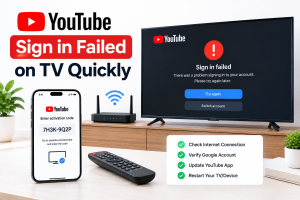
How to Fix YouTube Sign in Failed on TV Quickly Table of Contents If you can’t sign in to youtube on tv, unplug the TV