
News

How to Watch the NFL Game Tonight: Complete Live Stream & Channel Guide
How to Watch the NFL Game Tonight: Complete Live Stream & Channel Guide Table of Contents TL;DR To figure out how to watch NFL game
Finding a way to lower your monthly bill is always a win, but the process to actually redeem YouTube TV credit can be a bit elusive if you don’t know exactly where the platform hides its rewards. Simply navigating to tv.youtube.com fixes most issues with visibility, allowing for timely recognition and claim of credits.
This article offers fully comprehensive step-by-step instructions for account logins, tips for claiming and troubleshooting any potential issues. From applying promo codes to redeeming gift card balances or credits for service outages – such as the recent Disney Channel blackout credits – users gain trust in using their savings. The sections below delve into eligibility, types, benefits and more, ensuring uninterrupted viewing and getting the most out of credits.
YouTube TV extends credits to maintain subscriber satisfaction amid temporary content gaps or billing adjustments. These gestures acknowledge frustrations from blackouts, where key channels disappear due to contract disputes between providers and networks. Subscribers notice credits appearing as notices in account settings, designed specifically for affected users to claim easily.
Credits serve as direct bill reductions rather than cash refunds, applying forward to ease ongoing costs. This approach keeps services active while compensating for downtime, fostering loyalty during negotiations. Providers calculate amounts based on disruption duration and impacted households, ensuring fairness across base and premium plans.
If you are trying to redeem YouTube TV credit on your iPhone or Android app, you might notice the “Updates” tab is completely missing. This is the most common reason people think their credit has disappeared.
Promotional tie-ins with partners also generate credits, bundled alongside free trials or add-on upgrades. Billing corrections for overcharges or prorated months trigger smaller adjustments, appearing unexpectedly after support interactions. Seasonal campaigns further distribute them, rewarding long-term users with surprise balances.
Not all credits are created equal. Depending on how you got yours, the way you use it might change:
The trickiest part is that you often can’t do this inside the mobile app. To get the best results, you’ll want to jump on a laptop or a desktop browser.
Sometimes you know you’re eligible for a credit, but it just isn’t showing up. If you find YouTube TV not working the way it should during the redemption process, try these quick fixes:
Absolutely. A $20 credit might not seem like a fortune, but it can essentially pay for YouTube TV add-ons like 4K streaming or a sports pack for a month. If you stack these with referral codes or holiday promos, you can seriously dent that annual bill.
While it might take an extra minute to log in via a browser, the ability to redeem YouTube TV credit can save you $10 to $20 in a single click. These savings add up, especially if you stack them with referral bonuses.
Users who follow web-based steps, troubleshoot app limitations promptly, and understand credit types maximize every opportunity without forfeitures. Staying vigilant through settings checks and support channels ensures full eligibility capture.
Credits offset bills from disruptions or promos, applying forward without refunds. They appear in account settings for easy claiming by eligible subscribers. Amounts typically range from $10-$20 based on incidents.
Next billing cycle usually, visible in histories instantly. Delays rarely exceed a few days for processing. Check billing summaries for confirmation details.
Gift balances yes, covering 4K Plus or sports packages fully. Disruptions mainly target base fees only. Verify in Payments section post-claim.
Use web browser like Chrome, refresh Updates tab completely. Apps hide these options often due to limited views. Try incognito mode if issues persist.
No, strictly account-bound and non-transferable across profiles or family members. Primary account holders claim exclusively. Family plans distribute separately if eligible.
No impact—subscription stays active, bills simply lower by credit amount. Status remains unchanged throughout. Claims enhance value without risks.
Yes, claim sequentially through Updates tab listings. System processes them orderly without conflicts. Each appears as separate notices.
Credit typically forfeits upon cancellation. Reactivate to check eligibility restoration. Timing matters for pending applications.
Promos entered at signup for upfront discounts immediately. Service ones claimed post-notice for future bill adjustments. Both reduce costs differently.
View in Settings under Payments or detailed billing history. See applied, pending, and total amounts clearly listed. Updates reflect real-time.

How to Watch the NFL Game Tonight: Complete Live Stream & Channel Guide Table of Contents TL;DR To figure out how to watch NFL game

Does YouTube TV Have Big Ten Network? Full Channel & Streaming Guide Table of Contents So does YouTube TV have the Big Ten Network? In
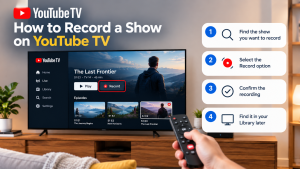

How to Record a Show on YouTube TV Table of Contents Record a YouTube TV show by searching for a program’s title and selecting +